Showing posts with label prestashop. Show all posts

New Order alert on Telegram for Prestashop

I created a Prestashop Module for a project that would send an alert to a Telegarm group when ever a new order is placed.
I would like to share the same with all of you.
Please feel free to download and use 👦

You can download the module zip file from here - https://github.com/bhaskarvyas001/TelegramOrderAlert

Requirement:
1. You will need to Telegram Bot Token
This can be got by creating a bot. Details to create a telegram bot is here - https://core.telegram.org/bots#6-botfather

2. You will need to know that Chat Id of the telegram group where you want to receive the alert
You can find out the Chat Id by following details here - https://stackoverflow.com/questions/32423837/telegram-bot-how-to-get-a-group-chat-id


Setting Screen


This is how the Telegram alert would look like


Prestashop 1.6 | Product import through CSV tips

Recently I have been uploading lots of products to the website http://www.assamesebooks.com
The upload was done through uploading a CSV file with all the product details.
The "Sample" CSV file to upload products is provide by Prestashop.

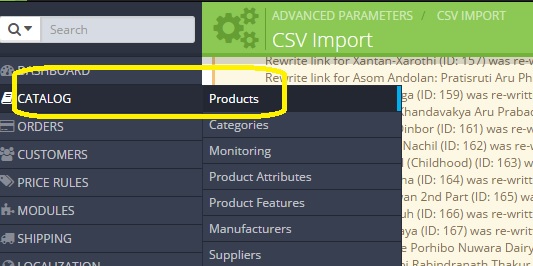
  1. To begin with navigate to the upload product CSV screen from the menu
Catalog -> Products - > click on the small import icon above the search button to navigate to the import CSV screen

Products Menu under Catalog

The import icon as highlighted

The CSV import Page

2. There are few import import settings on this page i.e.
  • Field Separator - This is the separator by how the individual columns in you CSV are separated. By default it is semicolon (;) so please be mindful of changing it if your file is a comma separated one
  • Multiple Value Separator - There are times when you have multiple values for a column. For example multiple Meta-keywords.  In that case you need to use the separator you mention here in the file.
  • Delete All products before import - I think this is self explanatory and a dangerous option. Use wisely as the products get deleted before the import starts. Which means even if there is a failure during the import; the products are already deleted.
  • Force all ID numbers - Use this option in case you want the ID in your CSV file to be used instead of auto generated by the database.
3. The sample CSV file can also be downloaded from this page. You can find it in the lower right corner side of the page. 


4. On the next page you need to MAP the columns in the CSV file to the expected values by Prestashop for product upload. This step is super important. 
Please select the data from the drop down which is represented by the CSV column.
Another important setting here is "Lines to skip". Use this option to skip the header row from your CSV file. If your CSV has no header then give this as 0 to read and process all the rows in the CSV.

You can also save your mapping by giving some name and clicking the save button. This way; next time when you plan to upload the CSV you don't have to do all the mappings.

5. Finally you are ready to start the import process. Click on the IMPORT button the the bottom of
the page.

6. Before we wrap up, I would share some tips of the way data is captured in the CSV file. Most of the columns in the CSV is self explanatory but some need special guidance. Below screen shot has those important column from my CSV file.


  • Tags - A tag is used to group related products with same search term. For EX: if we search for History then books under all categories related to History should come up who are tagged with the term History. It is a multi value column. You can give multiple values separated using the separator.
  • URL rewritten - This is supposed to be used to make SEO friendly URLs but some how populating this value in the CSV gives weird errors. So, I prefer keeping this column empty. In that case Prestashop auto generates the URL rewritten value based on the product name which as per me is a desired solution.
  • Image URLs -  This is again a multi valued column cause a product can have many images and you can give the URL of all those images separated by the separator. The funny thing is how do we get the URL of the images of a product that you are trying to upload.
    What I did is that I created a folder in the root of my server i.e. at public_html named a productImages and uploaded all the images here. Hence, the URL for the images became as "http://assamesebooks.com/productImages/AD00636.jpg". I used this URL in the CSV.
  • Feature(Name:Value:Position) - This is the most complex to understand column and the MOST important one too. This is important cause it helps us upload custom attributes of the product. For example products on http://assamesebooks.com had attributes like pages numbers, Author, Translator, year of publication etc.
    First of all we need to register our custom attributes in Prestashop. This can be done by following menu item i.e.

    Catalog - > ProductFeatures
    Post which you can mention all of these attributes / features along with their values in the same column separated by multi value separator. For example :

    Sub Title:War Book;Author:Anu Barua;Publisher:Purbanchal Prakash;Publication Year:2015;ISBN:978-81-7213-254-5;Language:Assamese;Pages:164;Weight (gms):286


    It took me nice 1 hour to figure out how to do this :-)

Hope these tips help some one save valuable time.. :-P


Prestashop || Payment Method based on geographic location

Dear friends,

This is yet another tutorial based on my experiences using Prestashop 1.6 on my application i.e. http:/www.assamesebooks.com

Case Study
The requirement was very simple i.e. there are certain Payment Methods which we did not want to be available in certain delivery locations. For example: We do not want  user to place a Cash On Delivery (COD) order for International delivery locations.

Solution

  1. Prestashop has an inbuilt solution to tackle such problems. Please navigate to following location in Prestashop Admin i.e Modules -> Payment 


  1. On the "Payment" page; scroll to the bottom where you find the section "COUNTRY RESTRICTIONS" 
  2. As you can see, both the payment gateways from my website are listed here with the options to enable / disable it for a specific country.
  3. Now, you can make changes to the Payment Method based on the geography. :-)

Changing Email Template in Prestashop

Hello Friends,

I have been lately working on my website http://www.assamesebooks.com which is build on the wonderful open source cart Prestashop v1.6

Case Study
This post is a tutorial on how to change template of the notification emails that are sent from the application. I would be taking the New Order Notification email (new_order)  for the merchant as an example for customization. The missing thing in this notification email is that it does not contain the ORDER STATUS as part of it. Hence, in case an user tried to place an order and decides to cancel it in the payment gateway page; the order gets placed with status as "Payment Error". The notification email says that an order is placed but there is no way to know if the order was successfully placed or not.

Solution

  1. There are various variables that are used in the email template to print the order details. These variable are populated and sent from various PHP files. In this case it is done through the following file i.e. /classes/PaymentModule.php
  2. Unfortunately, this file doesnt pass the order status to the email template. However, the file does have the order status variable declared in it. So all I had to do is pass this variable as well to the list of parameters being passed to the email template. 

    You can see the $order_status variable already declared


    So, all I had to do is pass this variable to the list being sent to email template
  3. Once, this is done we need to update the email template with this variable. The email templates in Prestashop can be access from Localization -> Translations -> email templates -> email module -> new_order menu in Prestashop Admin 


  4. All you have to do is select to edit the template as HTML / Text and add following to print Order status i.e. Order Status: {order_status} order_status is the variable that I set in the PHP to pass the status value 


  5. Now when a new order alert mail comes to your mail box; you can see the order status as well in it 


    That's all... Keep coding.. :-)